Mail (PM)
🔗 Original page — Source of this material
Description
This settings section is used to connect mailboxes that you can then use to send emails.
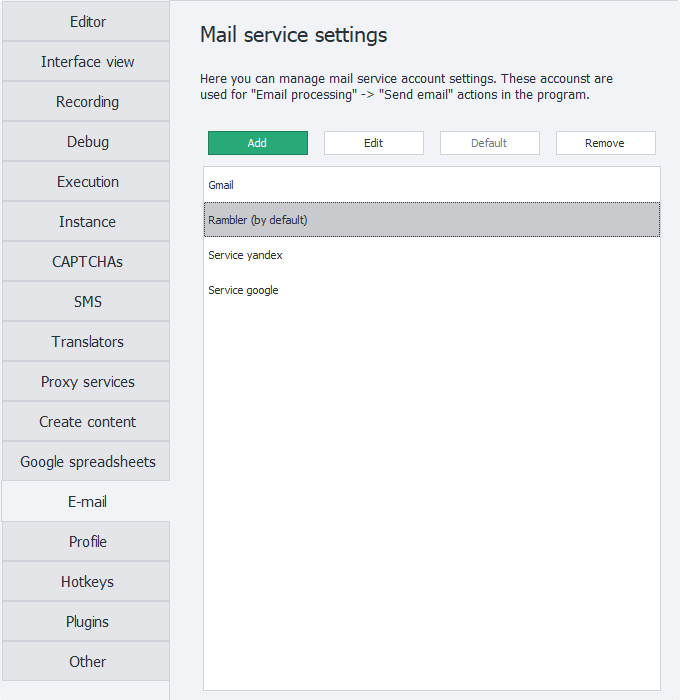
“Add” button
Clicking this button opens a window for adding a new connection.
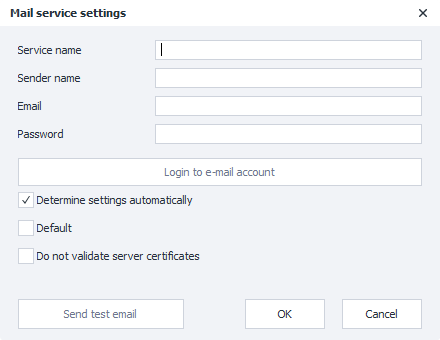
Service name
A custom name for this account that you choose yourself. It will appear under this name in the list of available accounts, for example, in the Send email action.
Sender name
This is the name that will appear in the sender field for the recipient.
Email
The full email address that will be used to send mail.
Password
The password for this mailbox.
Some email providers set a special password for connecting third-party programs for security reasons. This is called an App password. You can get one in the settings of the selected service.
“Sign in to email” button
When clicked, the connection details for the SMTP server will be checked.
The Email-Password combination is not checked.
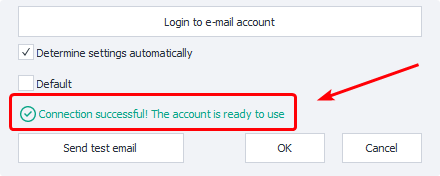
If the connection is successful, a green message will appear at the bottom of the window:
If the program cannot connect to the server, an error popup will appear:
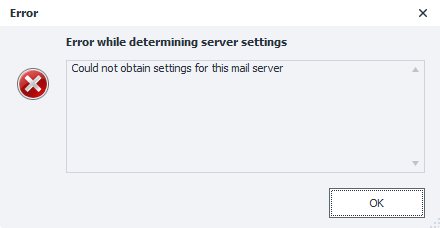
In this case, you need to configure the connection manually. To do this, uncheck the Detect settings automatically option.
Detect settings automatically
When this setting is enabled, the program will try to automatically determine the SMTP server connection settings based on the email address you entered.
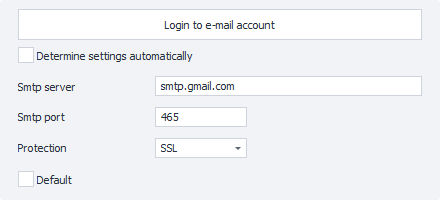
If you get an error after the settings are detected automatically, uncheck the box and enter the settings manually, using the information on your provider's website as a guide.
Default
When this option is enabled, the current connection will be used by default in all Send email blocks, unless specified otherwise.
Do not check server certificates
In some cases, you may get this error when connecting an account:
An error occured while attempting to establish an SSL or TLS connection.
This error most often occurs when establishing an unencrypted connection to the mail server. The provider then refuses the connection because the system cannot verify the authenticity of the SSL/TLS certificates.
There can be various causes. Here are the most common ones:
- An outdated version of Windows with long-unupdated trusted certificates;
- Antivirus software that replaces server certificates to decrypt and inspect incoming traffic;
- An enabled firewall.
The solution depends on the specific cause. You can update Windows or disable the firewall. If antivirus software is the cause, pay special attention to its incoming traffic and email scanning settings.
If nothing helps, enable this setting. After that, any certificates sent by the server to establish the connection will not be checked, and the connection will be marked as secure.
“Send test email” button
When clicked, ZennoPoster will try to send an email to your address using the specified SMTP server. This is used to check whether the entered details are valid.
If the account credentials are correct, the following status will appear: Test email sent successfully. This means the email service is ready to use in the program.
If you enter incorrect information, an error will appear: Failed to send test email. You can see a more detailed description in the window.
You can find the appropriate settings yourself by searching for:
smtp настройки подключения <НАЗВАНИЕ_ВАШЕГО_ПРОВЙДЕРА>
Additional buttons
“Edit”
Use this button to edit previously added email accounts
“Default”
This option lets you change the account that will be used by default
“Delete”
Removes the selected account from the program settings.